Blogs API WordPress Integration Guide for Devs
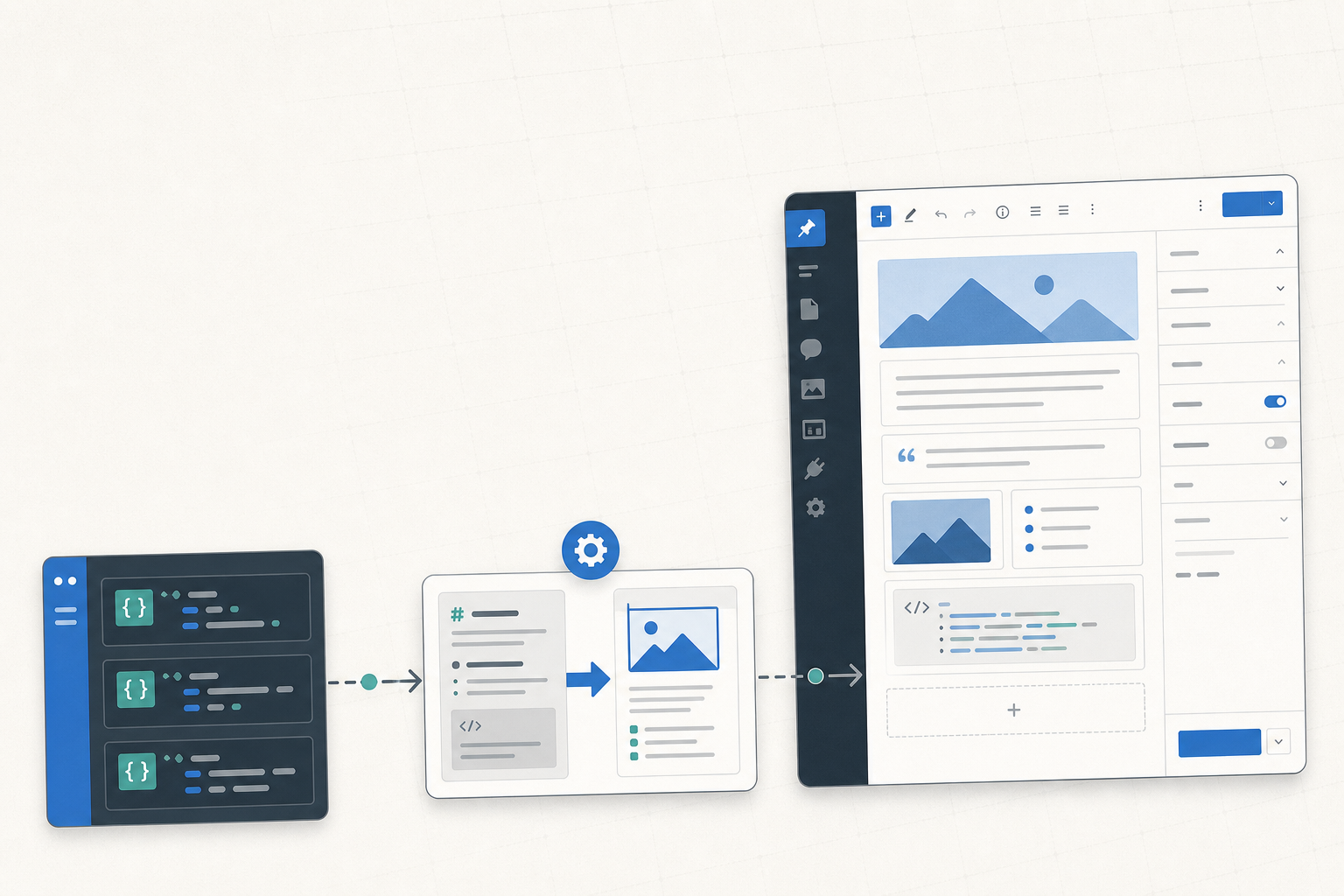
If your blogs API returns Markdown plus metadata, the cleanest integration turns each record into a WordPress post through the WordPress REST API, then keeps the source ID, custom fields, and SEO data in sync. As of June 2026, WordPress should be the delivery layer, not the system of record. This guide shows the full flow: fetch, transform, map, publish, and re-sync without creating duplicate posts.
Key takeaways
- A blogs API to WordPress pipeline should convert Markdown into WordPress-ready content before publishing.
- The WordPress REST API handles the post record, while custom fields and Yoast SEO fields handle structured metadata.
- A stable external ID is what keeps updates idempotent and prevents duplicate posts.
- Gutenberg works best when editors still need to reshape imported content after sync.
- Reliability comes from retries, validation, and a reconciliation job that checks drift between systems.
What this integration needs to do
A blogs API WordPress integration moves Markdown content and metadata from your source API into WordPress so posts can be published, updated, and managed from one pipeline.
At the simplest level, the flow is: fetch a blog record, normalize it, convert Markdown, map metadata into WordPress fields, and send the final payload to the WordPress REST API. That same flow should support both one-time migration and ongoing sync, because most teams start with import and later want updates, scheduled publishing, or webhook-driven changes.
The useful mental model is not “copy content into WordPress.” It is “translate an API record into the WordPress post model.” That means the body, title, slug, excerpt, publish state, timestamps, tags, and categories each need a destination. If the source also includes canonical URLs, author IDs, or SEO text, those need a mapping path too.
Before you build the sync
The sync is stable only when the inputs, outputs, and WordPress targets are defined before you write code.
- [x] Confirm the blogs API returns the fields you need: Markdown body, title, slug, excerpt, publish state, timestamps, tags, categories, and any custom metadata.
- [x] Identify the WordPress endpoints you will use, especially the posts endpoint and any media upload endpoint.
- [x] Decide where metadata should land: custom fields, Yoast SEO fields, taxonomy terms, or Gutenberg blocks.
- [x] Pick the sync model up front: manual import, scheduled sync, webhook-driven publishing, or a hybrid.
- [x] Plan authentication, rate limits, retries, and idempotency before the first request goes out.
A good integration starts with a compact source schema and a predictable destination schema. If the blogs API sends id, title, markdown, published_at, and seo.description, your code should normalize those into one internal object before touching WordPress. That keeps your publisher logic independent from any one API shape.
This is also the point to decide how editors will behave after import. If they will open posts in Gutenberg and revise them, your payload should leave room for blocks and readable structure. If the content is meant to stay mostly machine-managed, custom fields and a stricter publishing model will save you from accidental edits.
A lot of teams skip the planning pass and regret it later. The usual failures are simple: the source has no stable external ID, the WordPress site has no registered meta fields, or the sync job assumes every post is already published. Those gaps show up as duplicates, missing metadata, or posts that silently land as drafts.
How to map API data to WordPress
WordPress post fields should carry the editorial basics, while metadata should go into custom fields or plugin-specific fields.
| Source field | WordPress destination | Notes |
|---|---|---|
title | post_title | Use the exact post title unless you need a platform-specific override. |
slug | post_name | Keep it stable so URLs do not churn across updates. |
markdown | post_content | Convert to HTML or blocks before submission. |
excerpt | post_excerpt | Useful for archive pages and previews. |
published_at | postdate / postdate_gmt | Keep the timezone handling explicit. |
status | post_status | Map to draft, publish, or future. |
tags and categories | taxonomies | Resolve IDs or create terms before publishing. |
| SEO fields | custom fields / Yoast SEO | Map only if the plugin and field registration exist. |
A practical payload often looks like this:
{
  "title": "How to Sync Blog Content",
  "slug": "how-to-sync-blog-content",
  "status": "publish",
  "content": "<p>Converted HTML from Markdown</p>",
  "excerpt": "Short summary for feeds and archives",
  "date": "2026-06-02T08:00:00",
  "meta": {
    "source_blog_id": "abc123",
    "seo_title": "How to Sync Blog Content",
    "seo_description": "Practical guide to blog publishing sync"
  }
}
The safest approach is to keep a mapping layer between the blogs API and WordPress. Do not let source field names leak into the publisher. If the upstream team renames seo.description to meta.description, your integration should change in one adapter, not across the whole codebase.
For WordPress REST API work, think in terms of a post object plus extensions. Core fields create the post. Custom fields preserve structured data. Taxonomies organize content. Plugins such as Yoast SEO add another layer for search metadata. That separation keeps the system debuggable when one field fails.
How to publish posts through the WordPress REST API
- Fetch blog records from the API and normalize them into one internal model.
- Convert Markdown into HTML or blocks, then attach any media, taxonomy, and metadata values.
- Send the payload to the WordPress REST API posts endpoint with the correct authentication and status.
- Write custom fields and SEO data in the same sync pass when the integration supports them.
- Store the WordPress post ID back in your source system so later updates patch the same record.
The WordPress REST API is the cleanest publish path because it gives you a predictable endpoint and a known response object. In practice, the POST /wp-json/wp/v2/posts request creates a draft or published post, and the returned post ID becomes your anchor for later updates. If you are updating an existing article, use that stored ID and patch the same record instead of searching by title.
Authentication depends on your environment, but the important part is consistency. Application passwords, OAuth, or a server-to-server layer can all work if the credentials are stable and the permission model is tight. What matters more than the auth method is that every write is idempotent. If your job retries, it should not create a second post.
A useful publishing loop looks like this:
curl -X POST https://example.com/wp-json/wp/v2/posts \
  -u "api-user:application-password" \
  -H "Content-Type: application/json" \
  -d '{
    "title": "New post",
    "content": "<p>Rendered content</p>",
    "status": "draft"
  }'
You do not need to overcomplicate the first version. Start by creating drafts, then move to publish-on-sync once you trust the transform layer. That gives you a safe place to inspect content, verify metadata, and confirm that links, headings, and images survived the conversion.
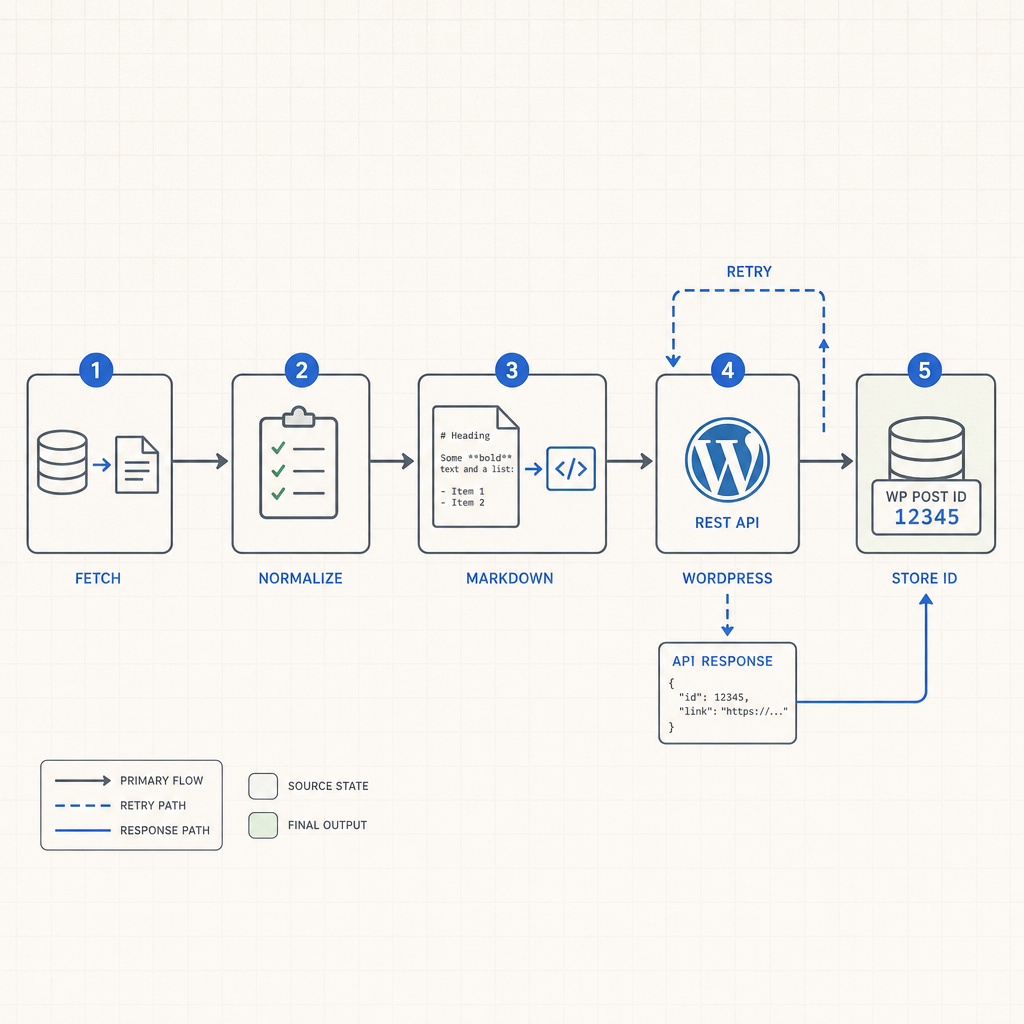
Use the stored WordPress post ID to keep future updates idempotent.
How Markdown should be handled
Markdown should usually be converted to HTML before it reaches WordPress, unless your workflow explicitly builds Gutenberg blocks.
That conversion step matters because WordPress expects rendered content, not raw Markdown, in most publishing flows. Headings, lists, links, code blocks, and images should survive the transform unchanged in meaning, even if the syntax changes. If your source uses tables or callouts heavily, test those cases early because they are the first places formatting tends to break.
If the site uses Gutenberg, you have two reasonable options. The first is to send HTML and let WordPress render it inside a classic block. The second is to map common Markdown structures into block markup, which gives editors cleaner control later. That second path takes more work, but it pays off if non-developers will edit imported posts.
Tip: Keep the Markdown source as the system of record when the API is upstream. That gives you a clean rebuild path if the WordPress site ever needs to be regenerated.
Validate the converted output before publishing. A malformed list, unclosed link, or broken code fence can turn a clean blog post into a support ticket. A quick render test in your pipeline is cheaper than debugging a broken article after it is live.
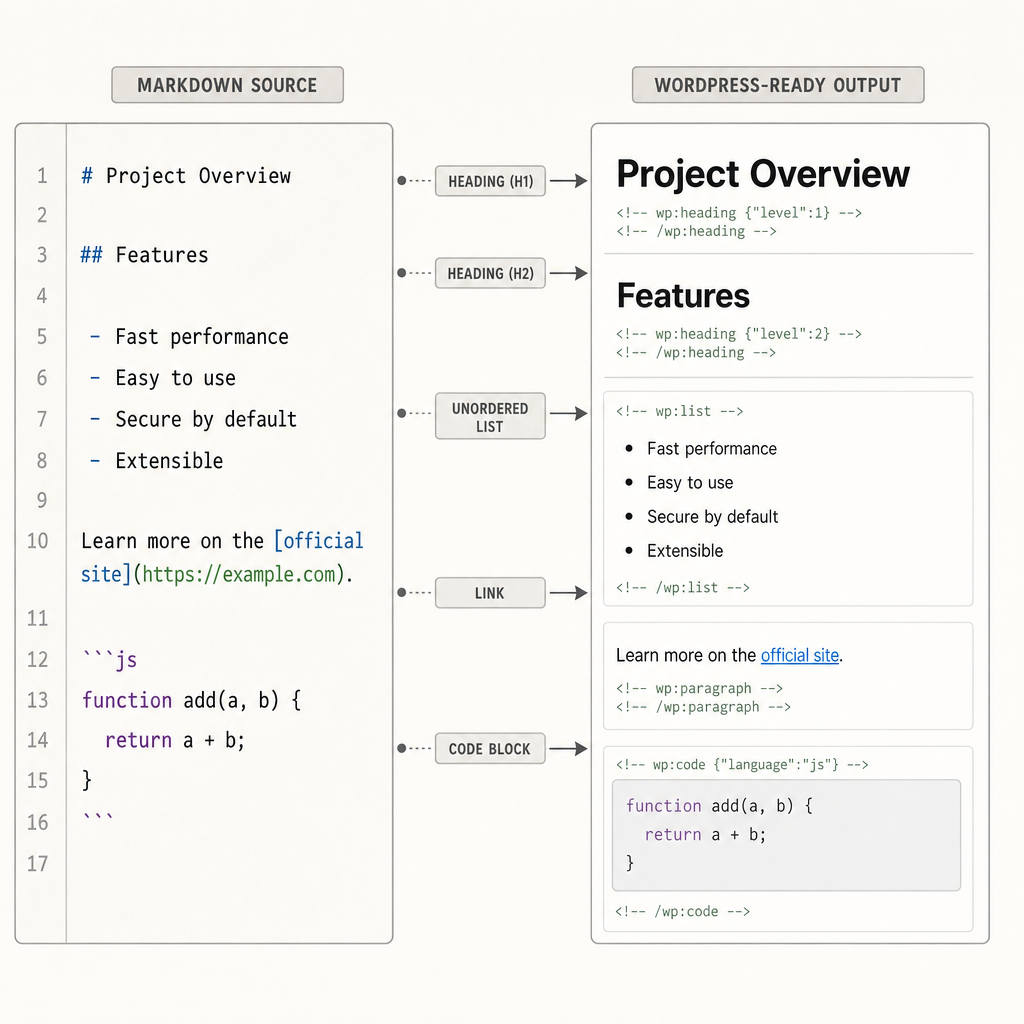
Test conversion on real content so formatting survives the trip.
How to sync metadata, custom fields, and SEO
Metadata sync is part of publishing, not a side task.
Structured data that does not belong in the article body should go into WordPress custom fields. That includes source IDs, canonical URLs, campaign tags, internal references, and any machine-readable fields your app depends on later. If your site uses Yoast SEO, map title, description, indexing controls, and canonical values into the plugin’s fields so search settings travel with the post.
A simple mapping strategy works best:
| Metadata type | Destination | Example |
|---|---|---|
| External ID | custom field | sourceblogid=abc123 |
| SEO title | Yoast SEO field | seo_title=Best API Sync Guide |
| Meta description | Yoast SEO field | seo_description=Sync blog content into WordPress |
| Canonical URL | custom field or SEO field | canonical_url=https://source.example.com/post |
| Product tag | taxonomy | integration, developer-tools |
| Author record | custom field | sourceauthorid=42 |
Treat this mapping as infrastructure, not content editing. The blogs API may expose data in a nested object, but WordPress usually wants a flatter write path. A stable adapter layer makes that translation boring, which is exactly what you want in production.
If the source includes publish dates, carry them over. If it includes the original author, preserve that too. Those fields help downstream systems reconcile content and make audit trails much easier when a post changes months later.
How to make the sync reliable
Reliability comes from idempotent writes, retries, logging, and reconciliation.
- [x] Use an external ID so the same blogs API record updates the same WordPress post.
- [x] Retry network failures and timeouts with backoff.
- [x] Log the source ID, WordPress ID, and response body for every write.
- [x] Validate required fields before sending the payload.
- [x] Add a reconciliation job that compares the source API and WordPress after interruptions.
Duplicate posts are usually a symptom, not the root problem. The root problem is often missing identity mapping. If the publisher cannot prove that one source record maps to one WordPress post, every retry becomes a new article. A stored WordPress ID, paired with the source ID, solves most of that pain.
You also want the sync to fail loudly when required data is missing. A draft with no title or a post with an empty body is rarely useful, and it can hide a bug in your mapping layer. Validation should happen before the WordPress call, not after.
Logging matters because support tickets are always about the one post that failed at 2 a.m. If you can search by source ID and see the outgoing payload, the returned response, and the final WordPress ID, you can repair the pipeline quickly. That is the difference between a useful integration and a mystery box.
When to use Gutenberg versus custom fields
Gutenberg is the better choice when imported content still needs to feel editorial in the WordPress admin.
Use Gutenberg when writers or content ops people will open the post, reorder sections, and tweak formatting after import. It gives them a visual editing model that matches the way the post will appear on the site. That is useful for landing pages, educational content, and blog posts that need occasional human cleanup.
Custom fields are the better choice for structured data that should not appear in the article body. Internal IDs, campaign values, product references, content status flags, and SEO metadata all fit better there. They keep the post body cleaner and make the data easier to query later.
| Scenario | Gutenberg | Custom fields |
|---|---|---|
| Editor will rewrite the article | Strong fit | Optional |
| Data must stay machine-readable | Weak fit | Strong fit |
| SEO metadata needs to sync | Possible, but indirect | Strong fit |
| Non-devs will manage the content | Strong fit | Good for hidden metadata |
| Content is mostly automated | Moderate fit | Strong fit |
The mixed model is usually the sweet spot. Use Gutenberg for the readable article content, then use custom fields for everything your app or SEO stack needs to preserve. That gives you an editorial front end without turning the whole post into a blob of hidden state.
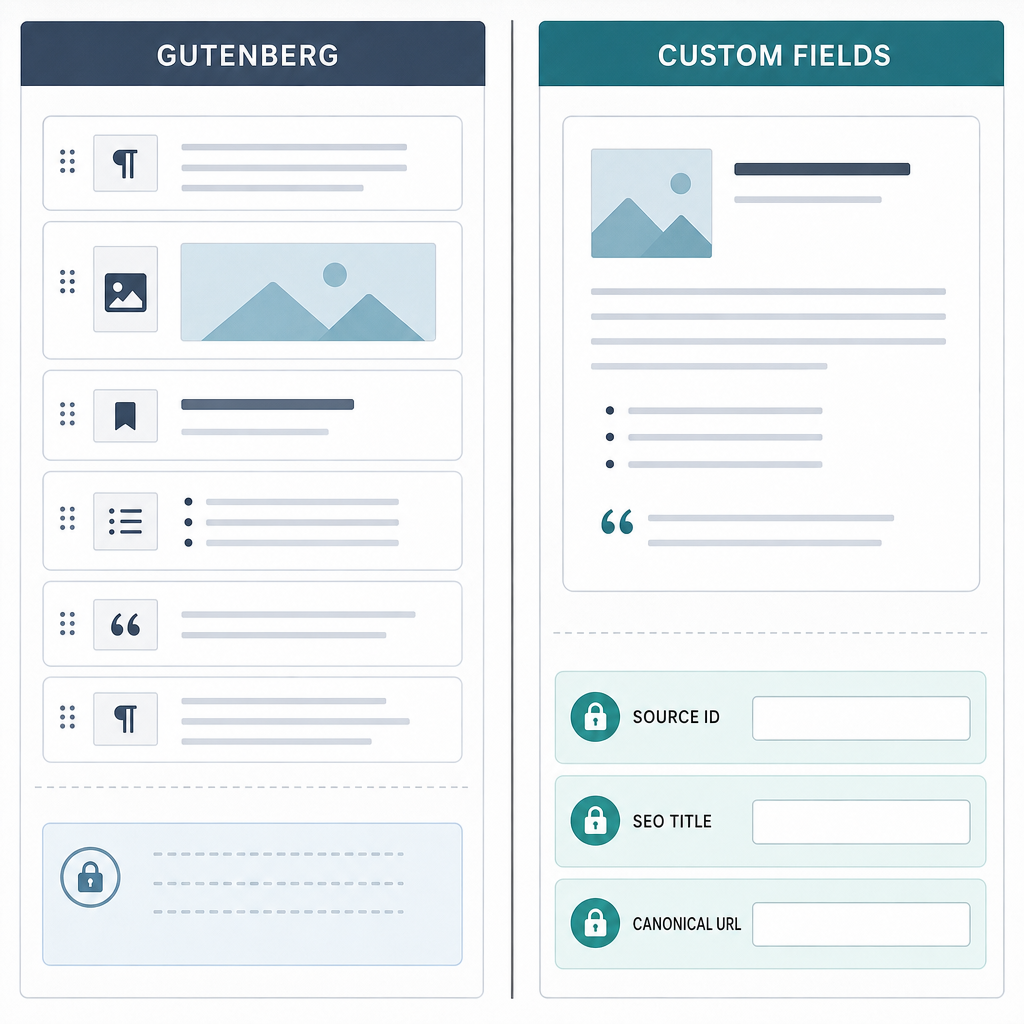
Use Gutenberg for readable content and custom fields for machine-readable metadata.
Common issues and troubleshooting
Most sync bugs come from conversion gaps, authentication mistakes, missing metadata, or duplicate identity handling.
Warning: If Gutenberg output looks wrong, inspect the converted block structure before blaming WordPress. A bad transform layer will produce broken blocks even when the REST call succeeds.
Markdown problems usually show up as missing headings, collapsed lists, or code blocks that lose indentation. The fix is usually in the converter, not WordPress itself. Test a representative sample of your real content, not just a toy paragraph.
Authentication errors often come from the wrong application password, a revoked token, or an endpoint with a permissions mismatch. If your request gets a 401 or 403, check the credential source first, then confirm the user role can create or update posts.
Missing metadata usually means one of two things: the destination fields were never registered, or the payload shape does not match what the plugin expects. That is common with Yoast SEO fields and custom fields because the write path often depends on site-specific setup.
Duplicate posts nearly always point to a missing upsert strategy. Store the WordPress post ID after the first successful write, and fall back to a lookup by external ID if the local record is missing. If a sync gets interrupted, a reconciliation job should compare source IDs with WordPress IDs and repair drift before the next scheduled run.
How do you send Markdown to WordPress?
Markdown is usually converted to HTML or Gutenberg blocks before it is sent through the WordPress REST API.
The common path is to render Markdown server-side, then submit the HTML as the post content field. If your site uses a block-first editing model, you can instead map headings, paragraphs, lists, and code samples into block markup. The right choice depends on how much control editors need after import.
A practical example: a source paragraph with a heading, list, and code fence can become one HTML content string or several Gutenberg blocks. Both work, but the second gives editors a cleaner editing experience in the admin.
How do custom fields work in WordPress integrations?
Custom fields store structured metadata that does not belong in the visible post body.
In a blogs API sync, they are the place for source IDs, canonical URLs, campaign tags, author references, and other data your app needs later. The publisher writes them alongside the post body so the WordPress record carries both editorial content and machine-readable context.
The important detail is registration. If the WordPress site does not expose the field the way your plugin or theme expects, the data may appear to write successfully and still vanish from the admin. That is why field mapping and destination setup need to be designed together.
Can Yoast SEO fields be populated from an API?
Yoast SEO fields can be populated from an API when the integration writes to the plugin’s expected fields and those fields are available on the site.
That usually means mapping SEO title, meta description, canonical URL, and indexing flags from your source metadata into the destination fields during the same sync pass. If the source API already tracks SEO values, you should not treat them as optional extras.
The practical test is simple: publish a draft, inspect the Yoast settings in WordPress, and confirm the fields match the source. If they do not, the issue is almost always a field-name mismatch or a missing plugin registration, not the API call itself.
Conclusion
A good blogs API to WordPress integration keeps Markdown, metadata, and identity mapping in one predictable flow. Start with a stable post mapping, store the external ID, and test one draft end to end before you automate the whole pipeline.
If you are building this now, wire up the WordPress REST API first, then add Markdown conversion and metadata sync once the post write is reliable.